
Touch settings let you visually adjust some Advanced touch settings.
The dialog looks slightly different if:
- Middle Click is set to 1 finger click in the middle or
- 1 finger tap > In the middle is enabled.
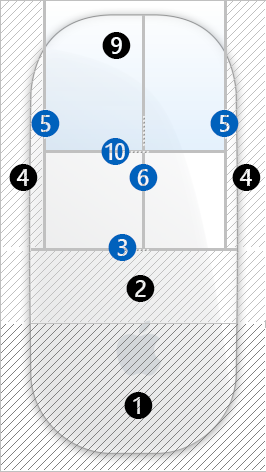
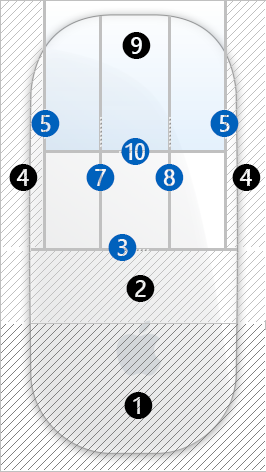
Click on the Magic Mouse image or Tap areas button to open the touch settings dialog.
| Any other middle click setting | 1 finger click or tap in the middle |
 |
 |
| (#) | Description | Advanced setting | |
|---|---|---|---|
| ❶ | Inactive bottom area where the surface is not touch sensitive. | ||
| ❷ | Bottom ignore area. Any touches in this area will be ignored to trigger scrolling and swipes. |
||
| ❸ | Splitter to adjust the height of the "Bottom ignore area (2)". | IgnoreBottomTouches | |
| ❹ | Left / right side ignore area. Any touches in this area will be ignored to trigger scrolling and swipes. |
||
| ❺ | Splitters to adjust the width of the "Left / right ignore areas (4)". Both splitters are symmetrically locked by default. |
IgnoreSideTouchesLeft IgnoreSideTouchesRight |
|
| ❻ | Splitter where the primary button ends and secondary button starts. | ||
| ❼ ❽ |
Splitter where the primary button ends and middle button starts. Splitter where the middle button ends and secondary button starts. Both splitters are symmetrically locked by default. |
MiddleClick1Start MiddleClick1End |
|
| ❾ | Tap area where tap to click is allowed, if enabled in Tap to click filter settings. | ||
| ❿ | Splitter to adjust the height of the Tap to click area (9). | TapToClickFromTop |